

Organizations
Okta SSO Setup
Configure Okta as a single sign-on provider for your Kinotic organization.
This guide connects an Okta org to your Kinotic organization so members can sign in to the Kinotic portal with Sign in with Okta.
The setup goes back and forth once: you create the app in Okta, add the provider in Kinotic, then copy Kinotic's callback URL back into Okta.
Prerequisites
- Administrator access to your Okta Admin Console (for example
https://yourorg-admin.okta.com). - Administrator access to your Kinotic organization.
1. Create the app integration in Okta
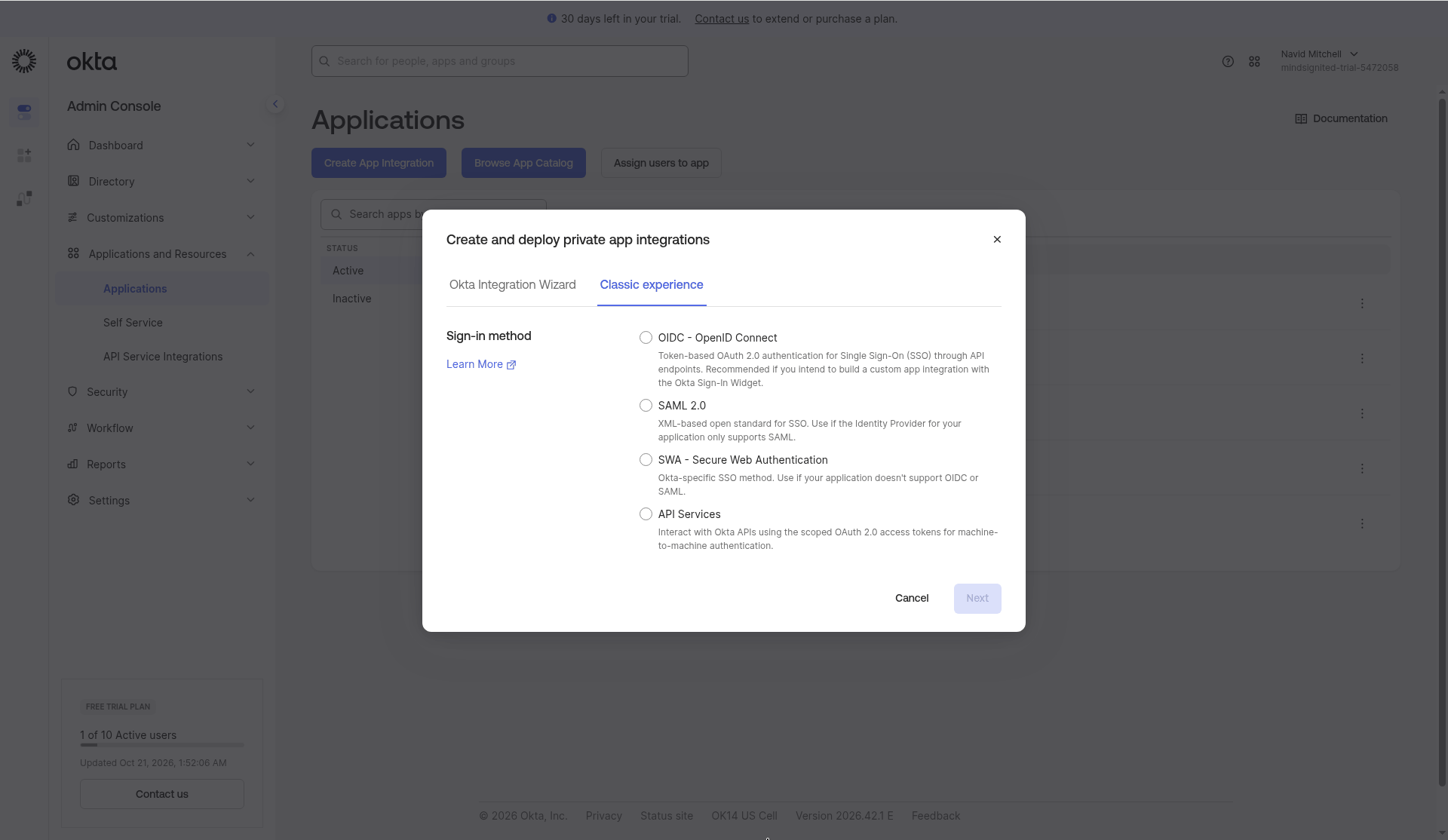
- In the Okta Admin Console, go to Applications > Applications and click Create App Integration.
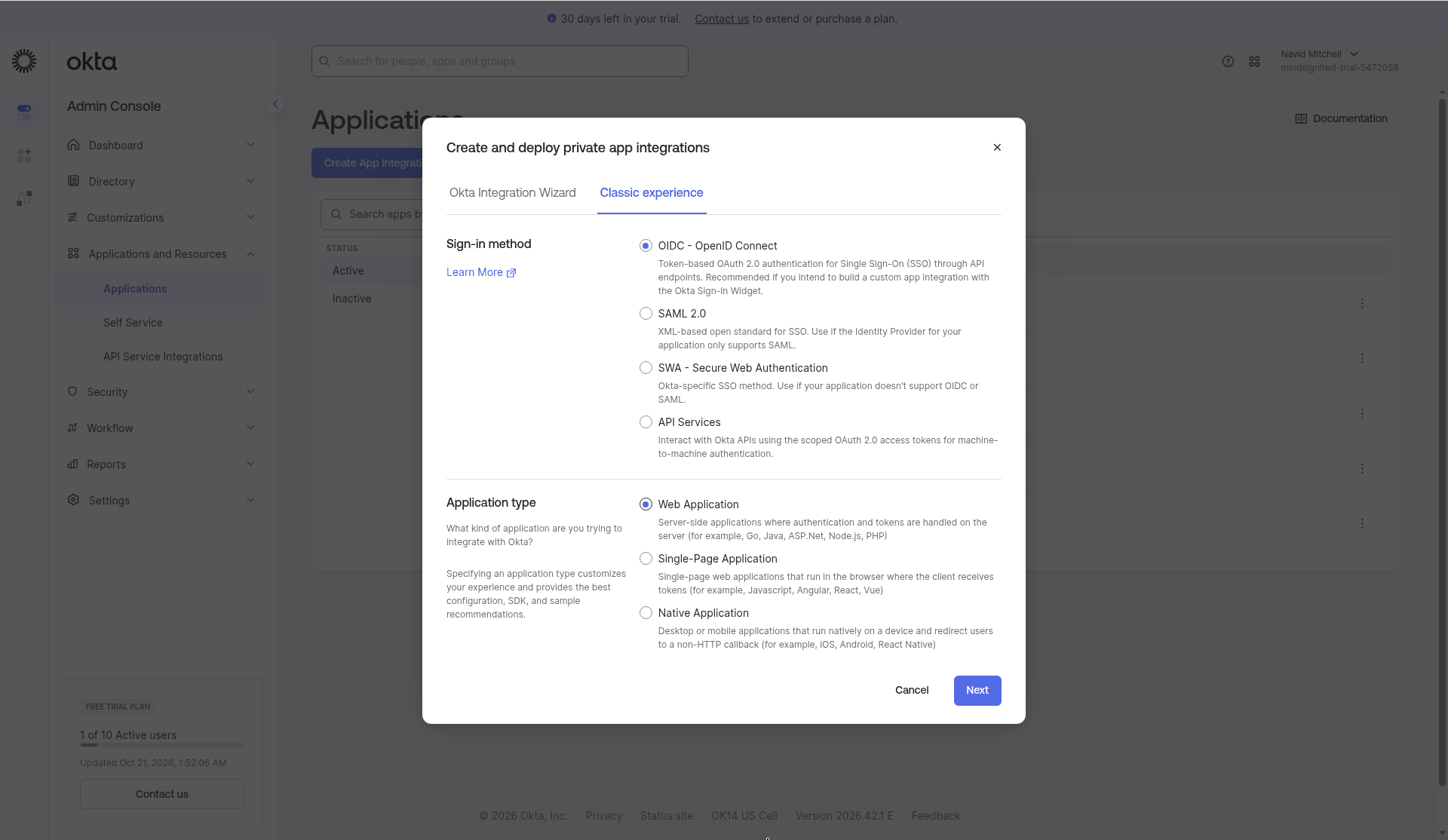
- Select the Classic experience tab, choose OIDC - OpenID Connect as the sign-in method, and Web Application as the application type. Click Next.
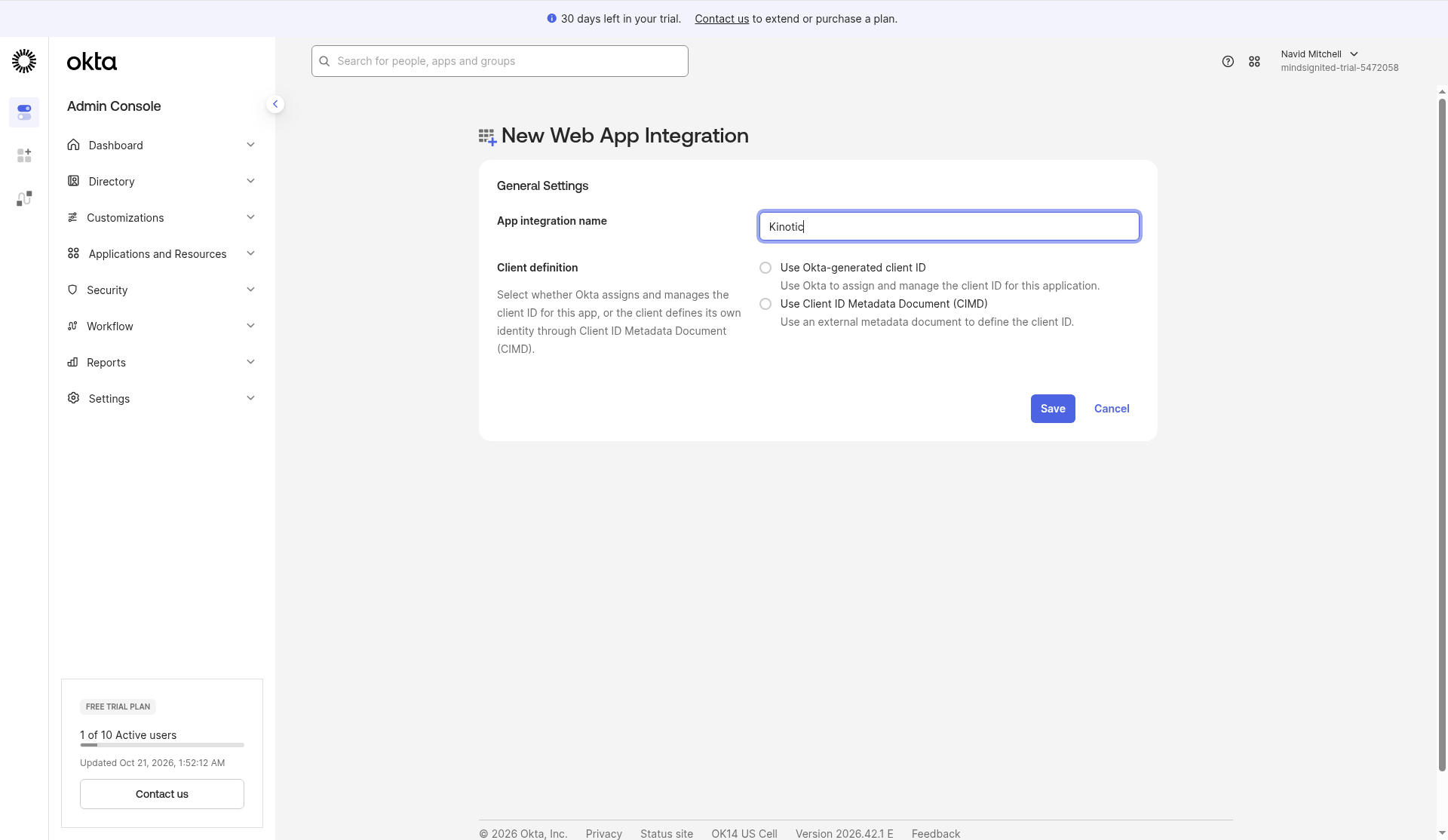
- Enter an App integration name, for example
Kinotic, and under Client definition choose Use Okta-generated client ID.
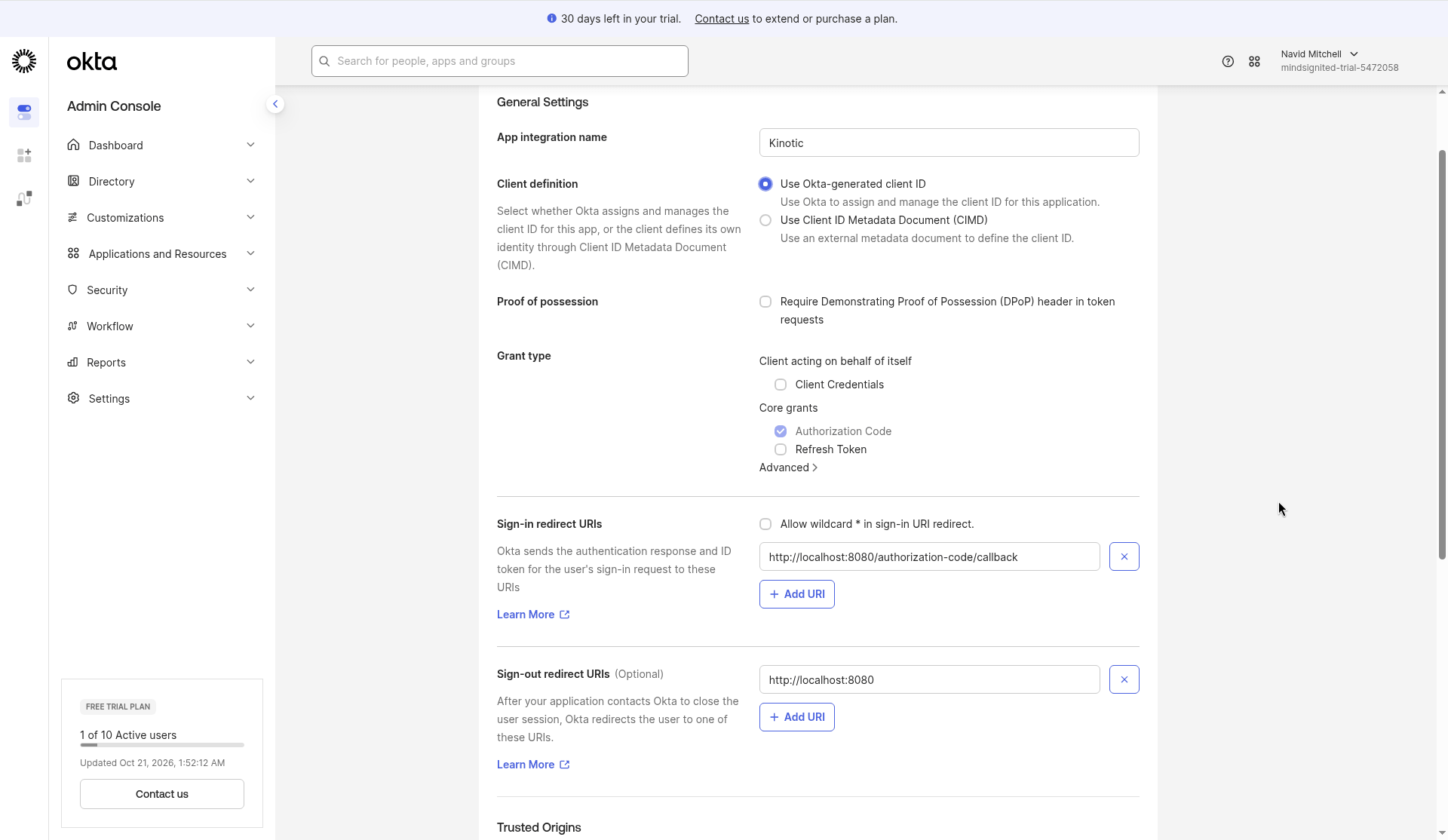
- Under Grant type, keep Authorization Code checked.
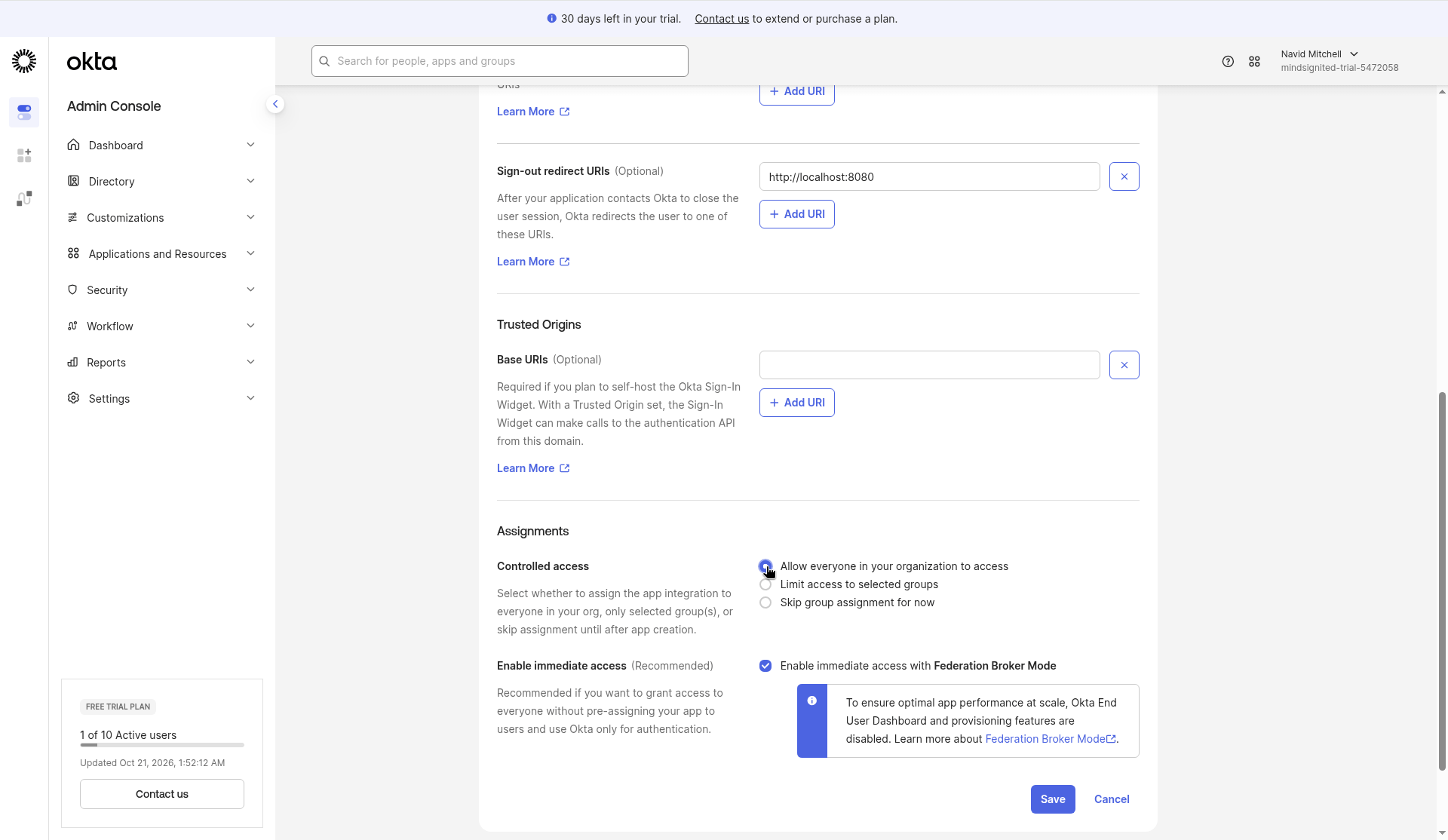
- Leave Sign-in redirect URIs as Okta's placeholder (
http://localhost:8080/authorization-code/callback) for now. You will replace it with Kinotic's callback URL in step 4.
- Under Assignments, choose Allow everyone in your organization to access, or Limit access to selected groups to restrict who can sign in. Click Save.
2. Copy the client credentials
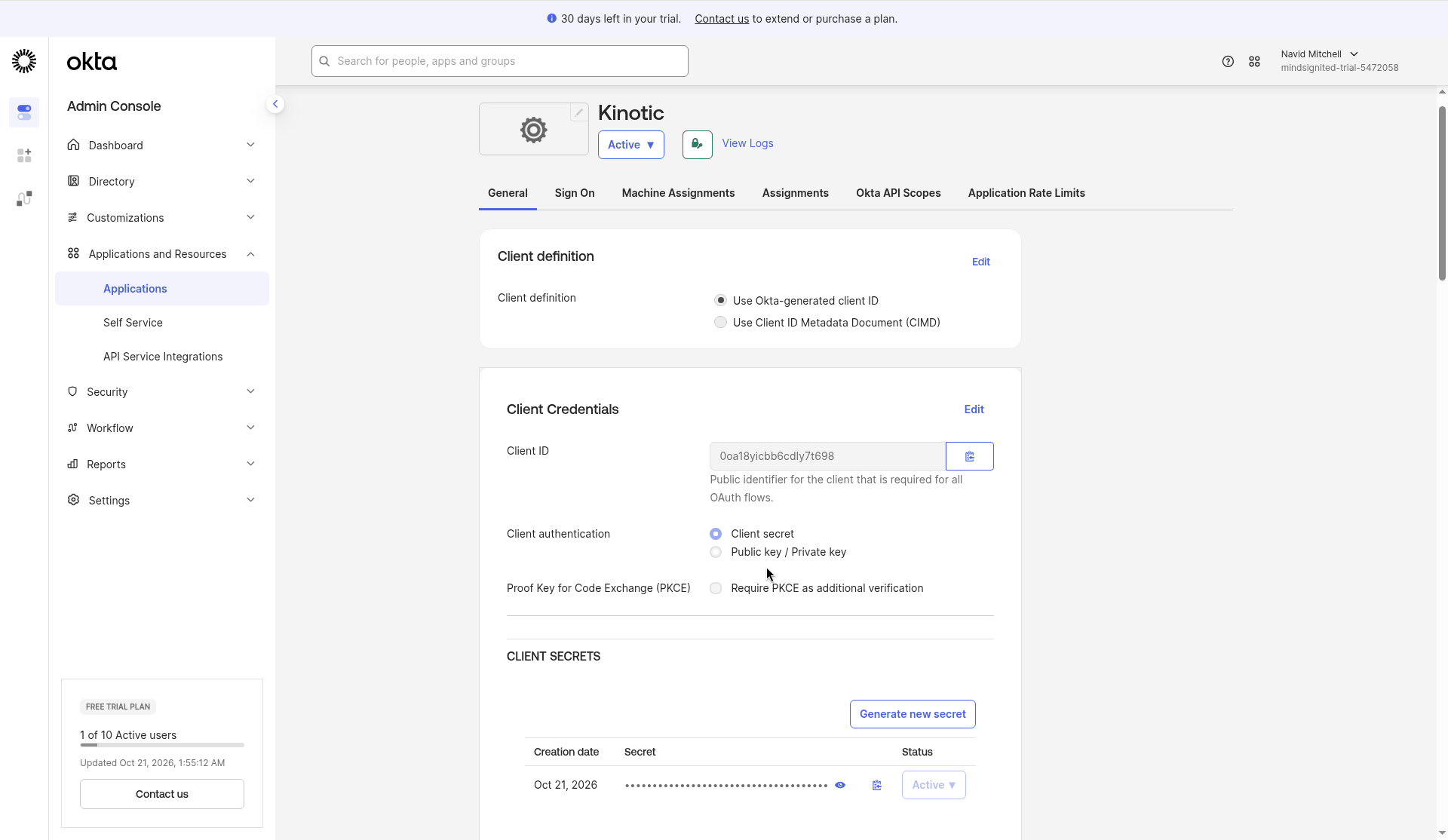
On the saved app's General tab, find Client Credentials:
- Copy the Client ID.
- Under Client Secrets, use the copy button to copy the secret.
3. Add the provider in Kinotic
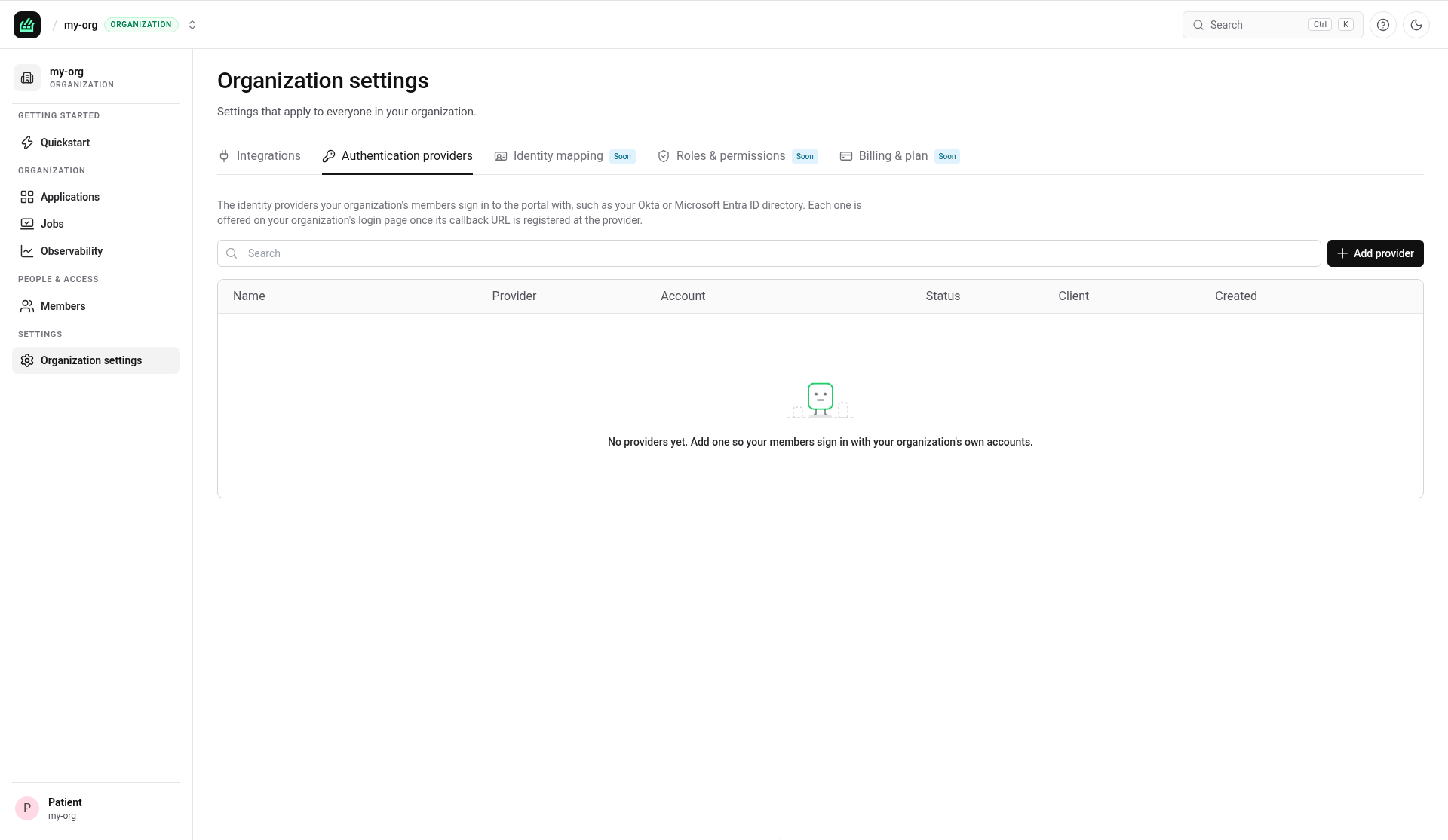
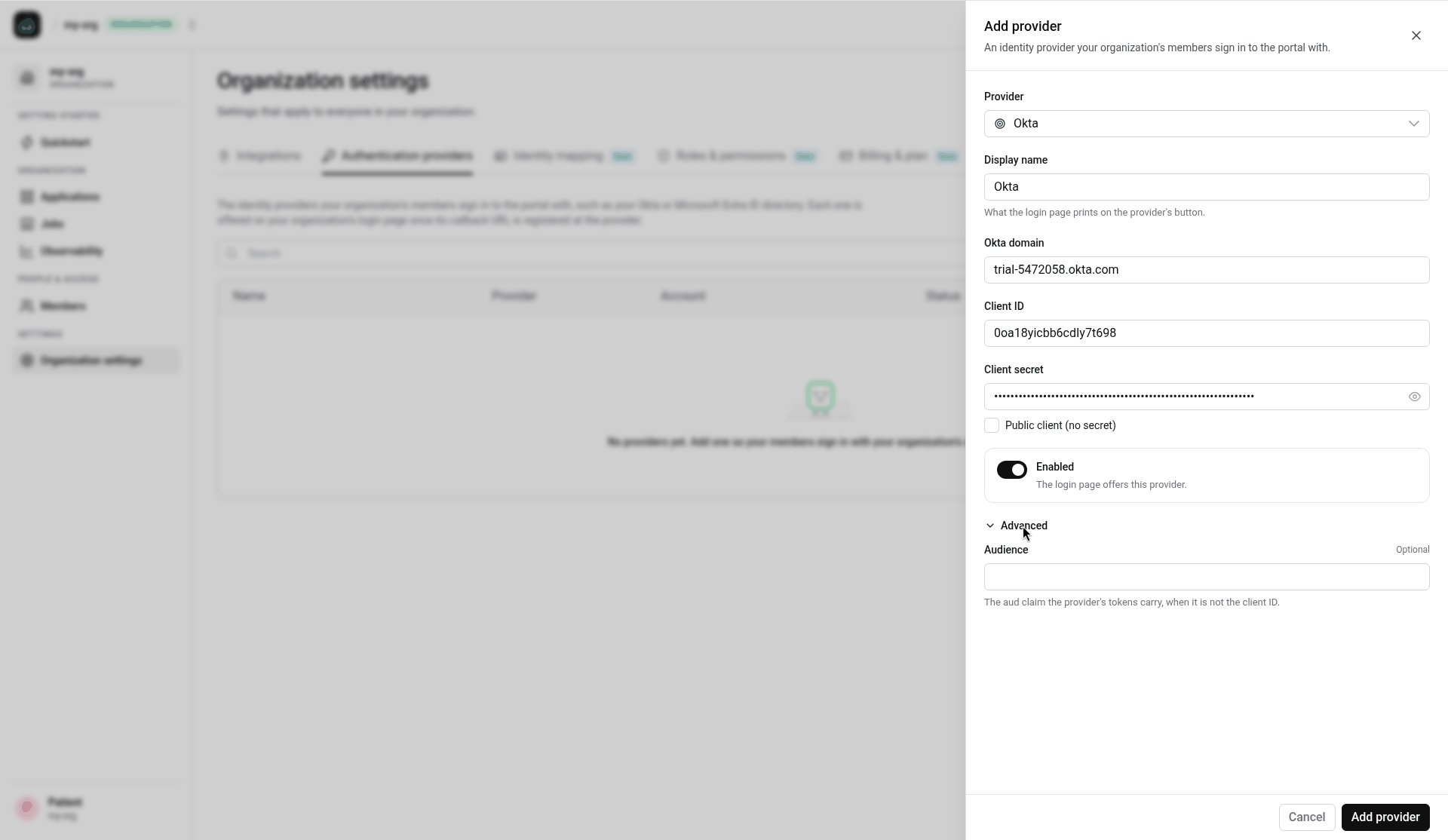
- In the Kinotic portal, open Organization settings and select the Authentication providers tab. Click Add provider.
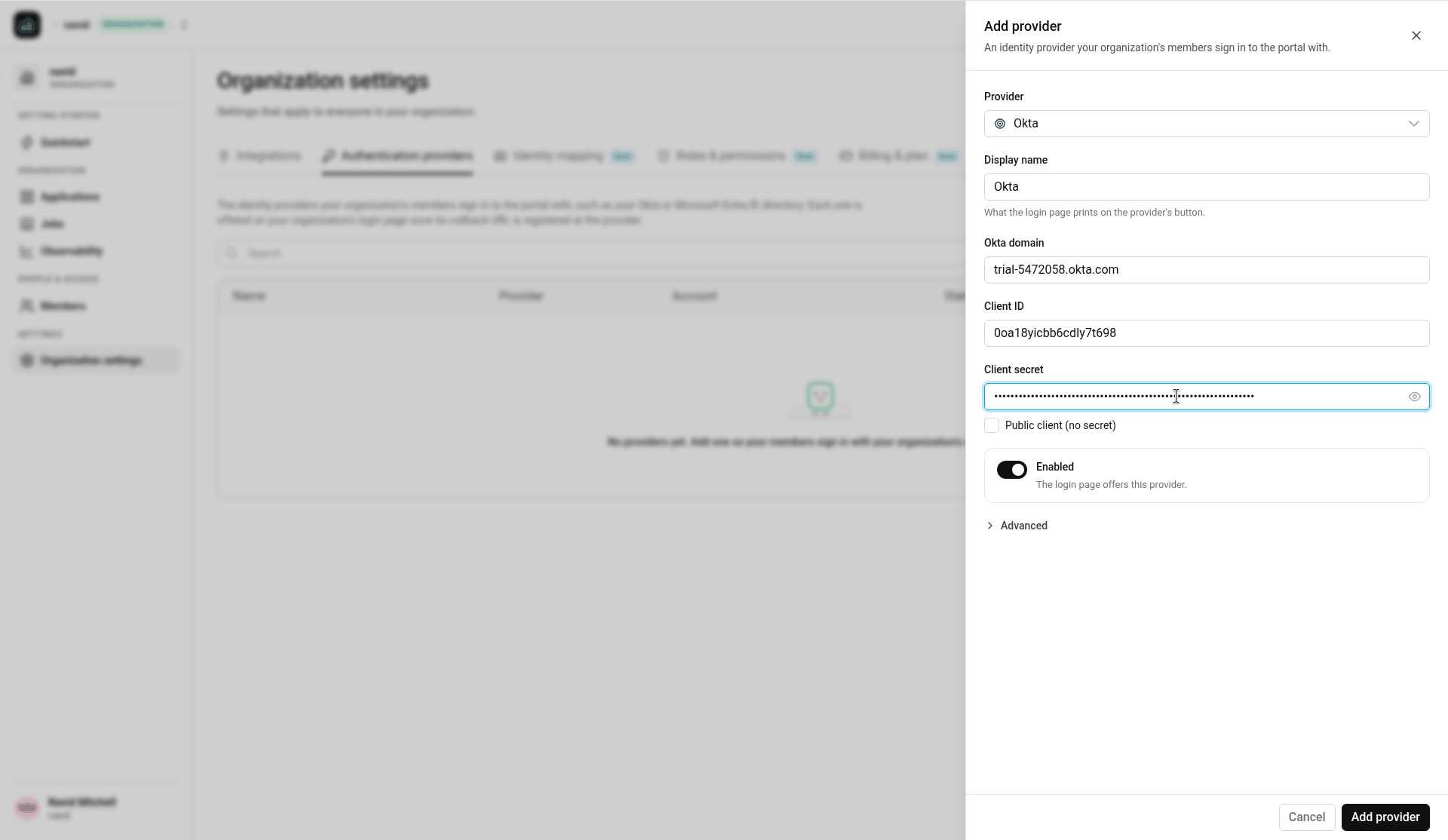
- Fill in the form:
| Field | Value |
|---|---|
| Provider | Okta |
| Display name | The text on the login button, for example Okta |
| Okta domain | Your Okta org domain, for example yourorg.okta.com -- no https:// and no path |
| Client ID | The client ID from Okta |
| Client secret | The client secret from Okta |
| Public client (no secret) | Leave unchecked. Check it only for a public client that has no secret |
| Enabled | On, so the login page offers this provider |
| Advanced > Audience | Optional. Set it only when the aud claim of Okta's tokens is not the client ID |
- Click Add provider.
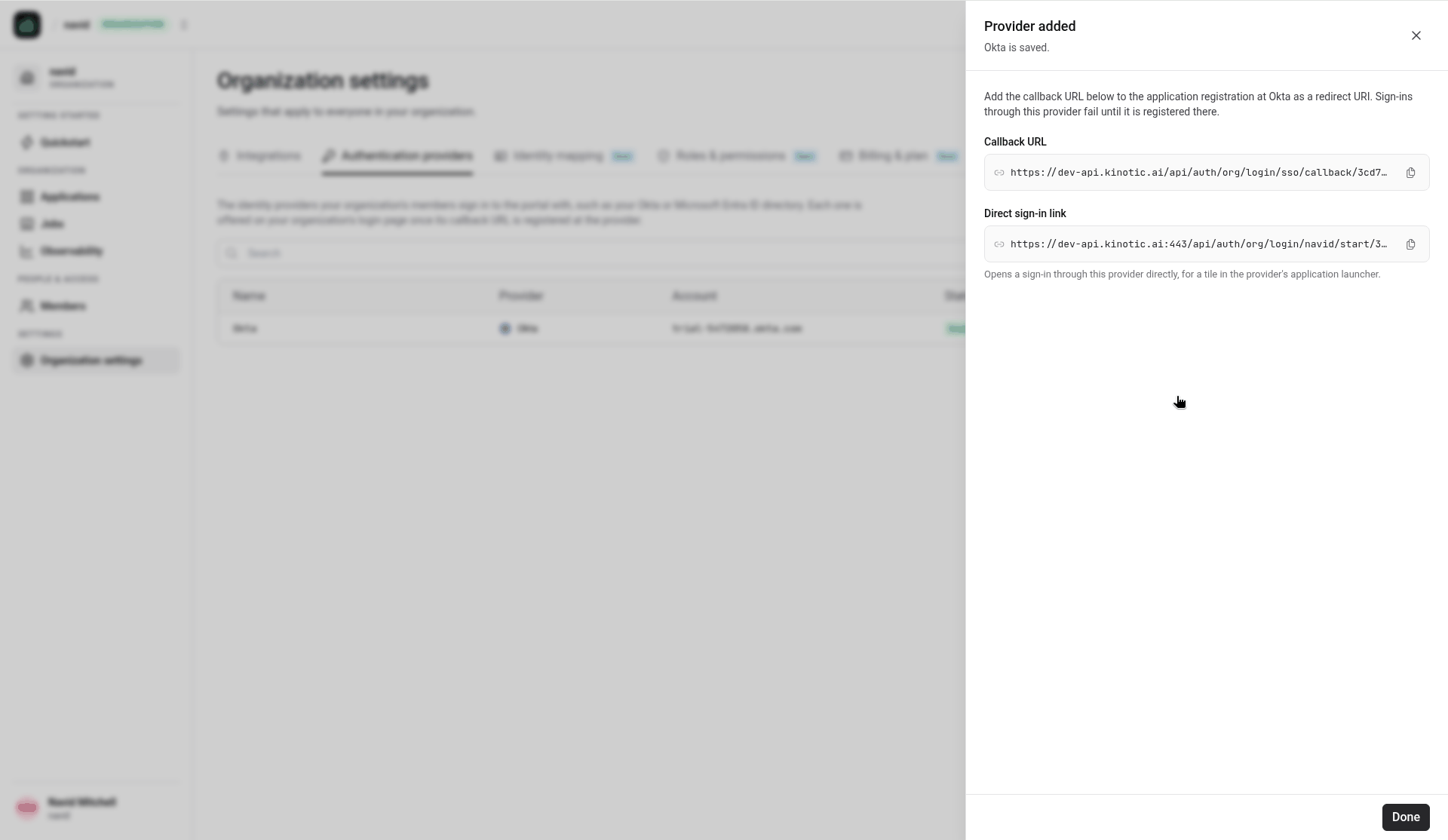
Kinotic creates the configuration and the drawer shows two URLs, each with a copy button:
- Callback URL --
https://<api-host>/api/auth/org/login/sso/callback/<config-id> - Direct sign-in link --
https://<api-host>/api/auth/org/login/<org>/start/<config-id>, useful for a tile in Okta's app launcher.
Copy the Callback URL.
4. Register the callback URL in Okta
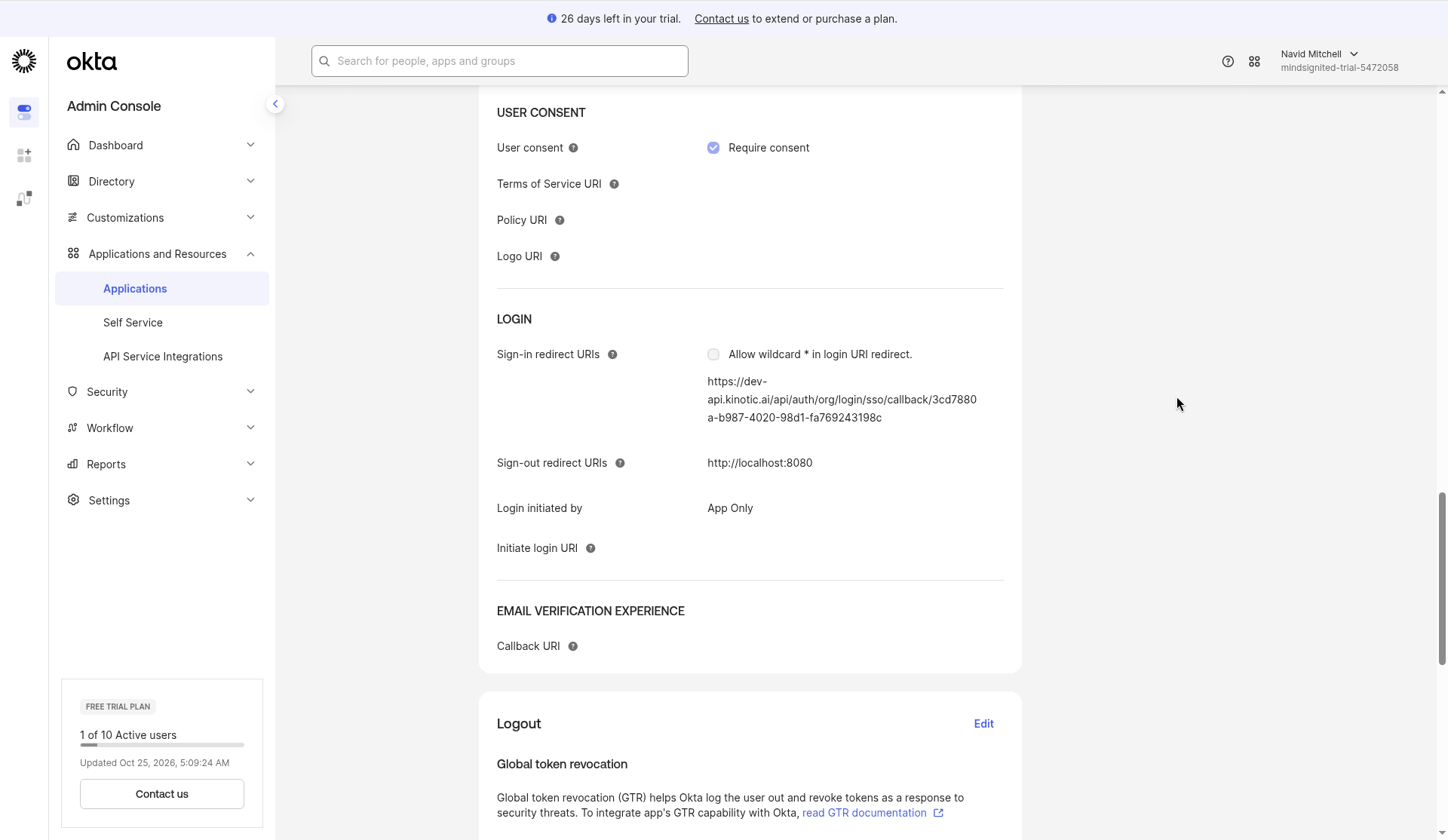
- Back in Okta, open the app's General tab, and click Edit on General Settings.
- Under LOGIN, replace the Sign-in redirect URIs placeholder with the callback URL you copied from Kinotic.
- Click Save.
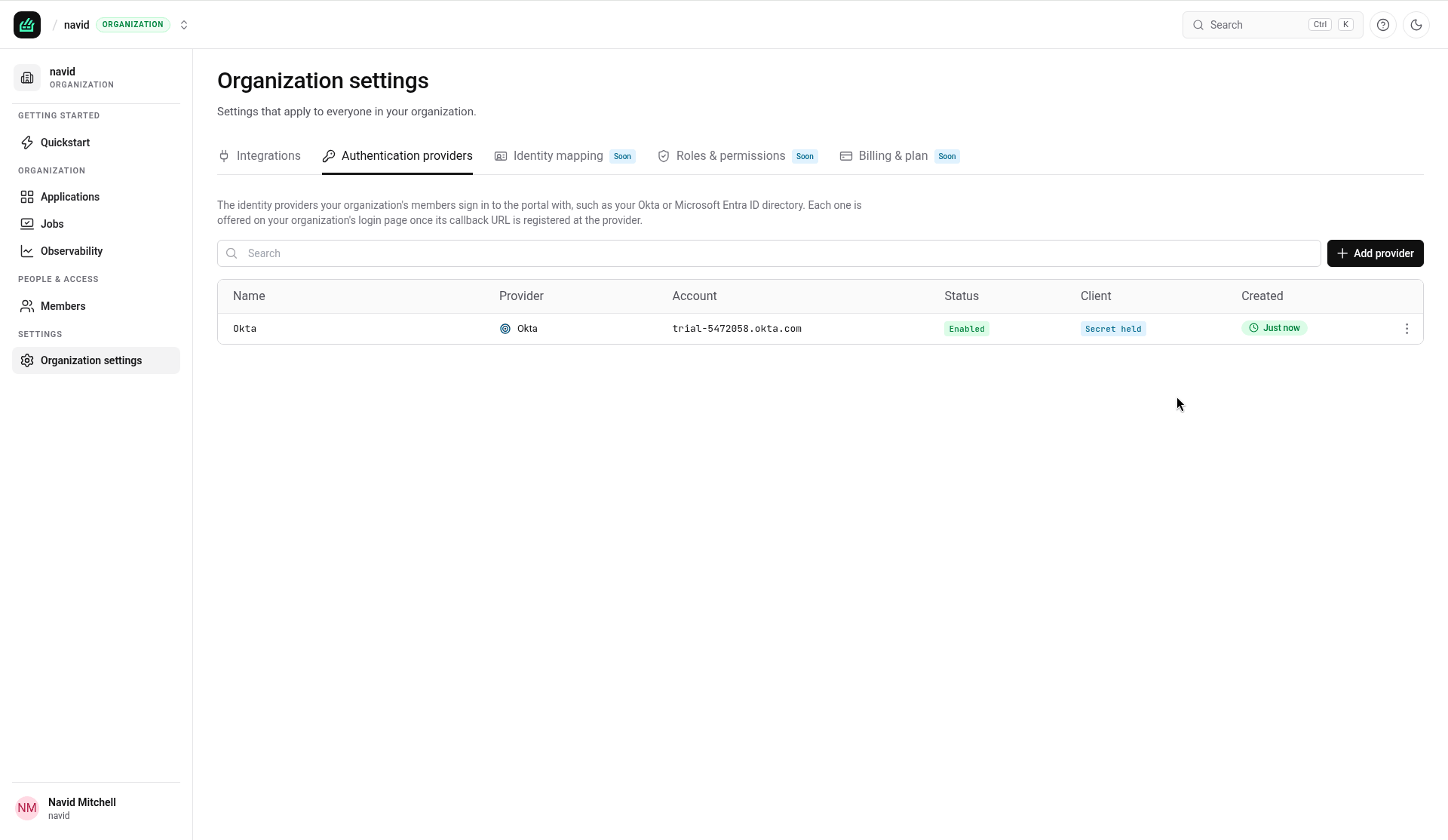
The provider now appears as Enabled in Kinotic:
5. Test sign-in
- Open your organization's login page,
https://<portal-host>/login/<org>. It now shows Sign in with Okta (using your display name). - Sign in with a user who is assigned to the Okta app.
To add more users, create or assign them in Okta (Directory > People, or through the groups assigned to the app).
Troubleshooting
| Symptom | Cause and fix |
|---|---|
Okta shows a redirect_uri error | The sign-in redirect URI in Okta doesn't exactly match Kinotic's callback URL. Copy it again from the provider in Kinotic and replace it in Okta |
| Okta says the user isn't assigned to the app | Assign the user, or a group they belong to, under the app's Assignments tab |
| The login page doesn't show the Okta button | Check that the provider is Enabled under Organization settings > Authentication providers |